• Home
  • Tech
  • Lifestyle
Tech

Notion Q&A vs ChatGPT Custom GPTs: The 2025 Verdict

by rian.bow 2025년 12월 01일
Key Takeaways:

  • Notion AI Q&A functions as a native retrieval system within your workspace, offering high-accuracy citations and respecting permissions.
  • Custom GPTs serve as external reasoning engines, superior for complex analysis and style mimicking but suffer from integration friction.
  • For 90% of daily workflow needs, Notion AI maintains “flow state” by eliminating context switching, whereas Custom GPTs are best reserved for heavy data synthesis.


Table of Contents

  • The Contenders: How They Handle Your Data
  • Round 1: Retrieval Accuracy & Context Understanding
  • Round 2: The Limitations (Where They Break)
  • Round 3: Workflow & Speed for Digital Nomads
  • The Verdict: Which one should you build?
  • Conclusion

You know the feeling. It’s 2:00 PM, you’re on a deadline, and “Search Paralysis” sets in.

You know you wrote a specific SOP for this client six months ago. You can almost visualize the page. But when you hit Cmd+P and type the client’s name, Notion throws back 50 irrelevant pages—meeting notes, archive logs, and half-baked drafts. You spend the next ten minutes clicking through nested databases, breaking your flow entirely.

We have officially entered the era of Retrieval Augmented Generation (RAG). In late 2025, chatting with your personal knowledge database isn’t a luxury feature—it is a fundamental productivity requirement.

The paradigm has shifted. You shouldn’t be searching; you should be retrieving.

But here is the friction point for every digital nomad and product manager: Do you pay for the integrated convenience of Notion’s native AI ecosystem, or do you harness the raw, unchecked computational power of OpenAI via Custom GPTs?

This isn’t just about picking a tool. It’s about deciding how you interact with your second brain. We are going to evaluate cost, accuracy, privacy, and setup time to see which tool actually reigns supreme for personal knowledge management right now.


The Contenders: How They Handle Your Data

Before we get into the ring, we need to understand exactly what we are comparing. These aren’t just two search bars; they are fundamentally different philosophies on how to handle your data.


What is Notion AI Q&A?

Keywords: Chatting with your Notion database, Notion AI agents, notion 3.0 features

Think of Notion AI Q&A as a native, permission-aware retrieval system that lives inside your house. It knows where the furniture is, it has keys to the rooms, and it knows which rooms guests aren’t allowed to enter.

As of September 2025, the game changed with Notion 3.0. Notion AI was rebuilt as “Agents,” moving beyond simple Q&A to autonomous task completion. It’s no longer just reading your data; it’s acting on it.

The 2025 Capability Leap:

  • AI Connectors: Notion can finally see outside itself. It now pulls context from Google Drive (Docs, Sheets, Slides), Slack, Outlook, and Box.
  • Enterprise Search: If you are in a corporate environment, it unifies retrieval across PDFs stored in SharePoint and OneDrive.
  • Linear Integration: For the tech-heavy teams, you can now ask, “What blockers are assigned to me this week?” and Notion pulls live data from your Linear projects.

The User Experience:
It is frictionless. You click the sparkle icon or use “Search all sources with AI,” and it just works. Crucially, it respects database permissions automatically. If you share a workspace with a freelancer who only has access to “Projects,” the AI won’t summarize your “Financials” page for them.

The Pricing Reality:
Here is the kicker. On Free and Plus plans, you are limited to a “trial” of roughly 20 AI responses. To get real utility, you need to upgrade to Business or Enterprise plans where AI is often bundled per-seat.


What are Custom GPTs (in the context of Notion)?

Keywords: Connect Notion to ChatGPT, Custom GPT API integration

If Notion AI is the butler living in your house, a Custom GPT is a genius consultant living in a skyscraper downtown. It doesn’t have keys to your house. You have to send it files, or build a secure tunnel (API) for it to peek inside.

Custom GPTs operate as a decentralized, external reasoning engine. They don’t live in your workspace. They pull data into their context window on-demand to crunch numbers and logic.

How We Connect Them in 2025:

  1. Document Upload (The “Dumb” Way): You export Notion pages as PDFs and upload them. It creates a static knowledge base that is outdated the moment you click “Upload.”
  2. API Actions (The “Hard” Way): You use Make or Zapier to bridge ChatGPT to Notion. It allows for live queries but requires you to be a part-time automation engineer.
  3. OpenAI Actions: You configure direct API calls to Notion’s endpoints. This is the most direct path, but surprisingly, even in late 2025, there is no official “one-click” pre-built connector from OpenAI.

The Distinction:
This approach functions as an “external brain.” It offers superior reasoning capabilities (thanks to GPT-4o and GPT-5 models) but comes with significant integration friction.

A focused digital nomad working late at night in a modern home office, illuminated by monitor glow

Round 1: Retrieval Accuracy & Context Understanding

When you ask a question, do you get the truth, or do you get a confident lie?


The “Hallucination” Factor vs. Source Citation

Keywords: How to search Notion pages with AI, AI hallucination rates

This is where the battle lines are drawn.

Notion AI: The Citation King
Notion AI Q&A wins on citation superiority. When it answers a question, it provides direct, block-level citations. You don’t just get text; you get a clickable link that takes you to the exact paragraph inside the exact document where the answer lives.

  • Why this matters: Trust. You can verify the context immediately.
  • Workflow: You can drag-and-drop the answer directly into a document you are writing. The flow is seamless.
  • Safety: Because it operates in a “walled garden” of your own data, the hallucination risk is significantly lower. It rarely invents facts because it isn’t trying to pull from the entire internet—only your workspace.

Custom GPTs: The Fuzzy Genius
Custom GPTs struggle here. They excel at synthesizing an answer (“Based on your notes, the client tone is professional…”), but they often fail to provide deep links.

  • The Struggle: You get a summary, but you still have to manually search Notion to find the source block to verify it.
  • The Risk: unless explicitly configured otherwise, Custom GPTs may synthesize facts without attribution. You get a great answer, but you can’t be 100% sure it’s real without double-checking.
Feature Notion AI Q&A Custom GPTs
Citations Block-level, direct links Vague or non-existent links
Hallucinations Low (Walled Garden) Moderate (Requires strict prompting)
Verification Speed Instant (1 click) Slow (Manual search required)
Close-up of hands typing on a pristine, organized desk setup in natural sunlight

Round 2: The Limitations (Where They Break)

No tool is perfect. In 2025, both systems still have frustrating glass ceilings.


Notion AI Q&A Limitations

Keywords: Notion AI Q&A limitations, Notion AI indexing lag

1. The Indexing Lag
While Notion claims to index content automatically, there is an undocumented indexing lag. If you update a status on a support ticket and immediately ask the AI about it, you might get the old status. For rapidly changing operational databases, this latency is a killer.

2. External Data Walls
Notion AI cannot query live external systems in real-time unless a specific connector exists. It cannot tell you your live Stripe balance or the shipping status of a Shopify order unless that data is already written into a Notion database text field.

3. Reasoning Constraints
Notion prioritizes speed. To make the chat feel instant, it often uses smaller, optimized models. These lack the raw cognitive reasoning of full-blown GPT-4o or GPT-5. If you ask it to “Analyze the sentiment of these 50 disjointed notes and build a psychographic profile,” it will likely choke.


Custom GPT Frustrations

Keywords: Custom GPT knowledge cutoff, OpenAI data privacy

1. Sync Friction
If you are using the document upload method, you are fighting a losing battle against the Knowledge Cutoff. Your GPT is only as smart as your last PDF export.

2. Privacy Paranoia
Uploading sensitive client wikis or internal SOPs directly to OpenAI servers raises valid concerns. Even with privacy controls, you are moving data out of your controlled workspace onto a third-party server. For users on standard Plus plans, this is a gray area for data training.

3. Context Limits
Large Notion workspaces are massive. They easily exceed the token context window of a Custom GPT. You are forced to fragment your knowledge base—uploading only “Active Projects” and leaving “Archives” behind, which defeats the purpose of a “second brain.”

A data analyst standing in a high-rise skyscraper overlooking a city skyline, representing external reasoning

Round 3: Workflow & Speed for Digital Nomads

Let’s look at real-world usage. We’ll call this the “Flow State” Test.


Scenario A: Writing a Client Proposal

You are in the middle of a proposal and need to recall specific goals from a Q3 kick-off meeting.

  • Notion AI: You hit the sidebar. You ask for “Q3 client goals.” It cites the meeting note. You drag the text block into your proposal.
    • Time: ~10 seconds.
    • Result: Flow state maintained.
  • Custom GPT: You open a new browser tab. You switch to ChatGPT. You ask the question. It gives a summary. You copy it, switch back to Notion, paste it, then realize you need to verify a number, so you manually search Notion anyway.
    • Time: 60–90 seconds.
    • Result: Flow state broken.

Winner: Notion AI.


Scenario B: Complex Analysis

You have 10 PDF transcripts of client calls and you need to draft an email that mimics the client’s specific communication style.

  • Notion AI: Fails. It struggles with cross-document style synthesis. It can summarize the notes, but it can’t “learn” the voice effectively to generate new content.
  • Custom GPT: Excels. You upload the transcripts. You ask it to “Analyze the tone and draft a response matching this style.” It nails the nuance.
    • Result: High-quality output that justifies the setup time.

Winner: Custom GPT.

Market Validation:
Companies like Affirm have recently replaced standalone search tools with Notion AI. Their reasoning? “Answers belong where people work.” The friction of leaving the tab is the biggest killer of productivity.

A satisfied freelancer working productively in a stylish coffee shop

The Verdict: Which one should you build?

The decision isn’t about which tool is “better” in a vacuum. It’s about your primary use case.


Choose Notion Q&A If…

Keywords: Best AI for Notion, Notion Business plan benefits

  • Speed is your god: You want answers in seconds, not minutes.
  • You need receipts: You need direct links to verify data immediately (crucial for legal or compliance work).
  • Permissions are non-negotiable: You have a team and can’t risk a junior employee asking an AI to summarize “Executive Salaries.”
  • You hate maintenance: You want a “day one” solution. No API keys, no Zapier glue, no manual exports.
  • You are scaling: You are already on a Business/Enterprise plan, making the feature effectively free per seat.


Choose Custom GPTs If…

Keywords: Advanced data analysis with AI, Notion API automation

  • You need a reasoning engine: Your work involves analyzing data on the documents (e.g., “Find trends in these 50 support tickets”).
  • You are a power user: You are comfortable maintaining API Actions or Make/Zapier workflows to ensure live data sync.
  • You need Unified External Search: You need to smash Notion data together with random Slack transcripts and external PDFs into one reasoning pot.
  • Privacy Control: You prefer running live API queries that pull data on-demand rather than storing persistent bulk exports on OpenAI servers.

Conclusion

Let’s simplify this for your 2026 strategy.

Notion Q&A is the superior search tool. It helps you find what you already know.
Custom GPTs are the superior reasoning tool. They help you synthesize new insights from what you know.

Here is the actionable advice:
For 90% of digital nomads managing standard wikis and SOPs, the friction-free native integration of Notion AI provides a vastly better ROI. The maintenance tax of a Custom GPT isn’t worth it just to find a meeting note.

However, audit your queries. If you find that >30% of your requests require complex reasoning, synthesis, or style matching, you should build a Custom GPT alongside your Notion workspace to handle those heavy-lift tasks.

Struggling to organize your Notion so AI can actually read it?
An AI is only as smart as the database it reads. If your workspace is a mess, your AI will be too. Download our ‘AI-Ready Notion Template Checklist’ below to structure your database properties and hierarchy for maximum retrieval success.

Frequently Asked Questions

Is Notion AI Q&A included in the Free plan?

Technically, yes, but only as a very limited trial (roughly 20 responses). To use Notion AI effectively for daily workflow, you must upgrade to a paid add-on or a Business/Enterprise plan where it is often bundled.

Can Custom GPTs access my Notion data in real-time?

Yes, but it requires setting up “API Actions” or using an automation bridge like Make/Zapier. Unlike Notion AI, which has native access, Custom GPTs do not have a one-click connection to your live database out of the box.

Which tool is safer for sensitive client data?

Notion AI is generally considered safer for internal data because it operates within your workspace’s “walled garden” and respects existing user permissions. Custom GPTs involve sending data to OpenAI’s servers, which requires careful configuration of privacy settings to prevent model training.


2025년 12월 01일
0 FacebookTwitterPinterestEmail
Tech

Organizing Notion After Evernote Migration: 4 Simple Steps

by rian.bow 2025년 11월 30일
Key Takeaways:

  • Shift Your Mindset: Stop treating Notion like a digital filing cabinet; start building dynamic systems using databases and context-based properties.
  • Don’t Organize the Import Folder: Treat your imported Evernote data as “Cold Storage” and only move active projects to a new “Inbox” to avoid burnout.
  • Leverage AI and Templates: Use Notion AI to summarize old notes and extract action items, and adopt frameworks like PARA or Zettelkasten for structure.


Table of Contents

  • The Mental Shift: Notion Setup for Former Evernote Users
  • Step 1: Processing the “Import Dump” (Tactical Guide)
  • Step 2: How to Replace Evernote Tags in Notion
  • Step 3: Best Notion Templates for Knowledge Management
  • Step 4: Maintaining the System (Avoiding the mess again)
  • Conclusion


The Mental Shift: Notion Setup for Former Evernote Users

You hit the “Import” button. You waited. And now, you’re staring at it.

For thousands of former Evernote users, the immediate visceral reaction to the “Evernote Import” page isn’t relief—it’s dread. Instead of a clean slate, you face a scrolling, undifferentiated mass of content. Meeting notes from three years ago sit adjacent to archived recipes; random web clippings are mixed in with vital project PDFs. It looks like someone took a filing cabinet and dumped it upside down on the floor.

If you feel paralyzed, you aren’t alone. The migration feels messy because of a fundamental architectural clash. Evernote is a Digital Filing Cabinet, designed for rigid storage where things live in one specific place. Notion is Digital LEGO, designed for infinite construction where things live wherever you build a view for them.

The “easy import” button technically transfers your data, but it fails to translate your organizational intent. It leaves you with thousands of unstructured files in a single folder.

This is your roadmap out of that folder. Organizing Notion after Evernote migration requires a mental shift from “moving files” to “building systems.” Instead of manually sorting 10,000 notes, we are going to use a Triage Methodology and 2025-era AI features to turn that chaos into a functional Operating System.

Before moving a single note, you need to stop thinking like an actuary and start thinking like an architect. The habits that kept you organized in Evernote are exactly what will make Notion feel broken.


Notebooks vs. Databases

In Evernote, a “Notebook” is a static container. It holds notes in a linear list. If you wanted to see a note in the “Marketing” notebook, you had to go to that specific notebook.

In Notion, “Databases” are dynamic engines. They don’t just hold content; they display it based on context. This is the “Aha!” moment for most displaced power users: Stop creating a page for every “Notebook.”

Instead, you need to create a Master Database (often called a “Second Brain” or “Knowledge Hub”). In this system, the context of a note is defined by its properties, not its location.

The Comparison:

Feature Evernote (The Cabinet) Notion (The LEGO Set)
Structure Notebooks & Stacks Databases & Views
Organization Rigid Hierarchy (Folder > Subfolder) Fluid Context (Properties & Filters)
Duplication Copying a note to put it in two places Linking one note to multiple views
Retrieval Browsing folders Filtering by tags/status

Why this matters:
Imagine an article titled “The Future of AI in HR.”

  • In Evernote: You have to decide—does this go in the HR Notebook or the Tech Trends Notebook? You might duplicate it to put it in both.
  • In Notion: It lives in one Master Database. You tag it with “Topic: AI” and “Project: Talent Strategy.” Now, that single note appears simultaneously in your “Technology Dashboard” and your “HR Project Hub” without ever being duplicated.


The “Inbox” Concept

Here is the most critical rule of your migration: Do not organize inside the Import folder.

Treat the Import folder strictly as a “Cold Storage” archive. If you try to fix the formatting and tags of 5,000 notes inside that folder, you will burn out in a week.

Unlike Evernote, which often forced a default notebook on you, Notion requires you to build a designated “Inbox”. This is a specific database view or page where new ideas land before they are processed. Your goal is to move items from the Import folder to your new system intentionally, leaving the junk behind.

A chaotic pile of mixed paper documents and folders scattered on a floor representing digital clutter

Step 1: Processing the “Import Dump” (Tactical Guide)

You have 5,000+ notes. You do not need to process all of them. In fact, trying to do so is the primary cause of migration failure.


The Triage Method (Archive vs. Active)

For the vast majority of knowledge workers, your library follows the 15/30/55 Rule:

  • 15% Active: Projects you are working on right now (last 30 days).
  • 30% Reference: Templates, core research, and evergreen data you look up monthly.
  • 55% Cold Storage: Old meeting notes, finished projects, and “someday” clippings.

The Strategy:
Create a new page called “Archive [Year]” and drag the bulk of your import folder there. Yes, just move it. Your focus must be on moving only the Active Projects to your new workspace to maintain momentum.

Pro Tip: You do not need to organize the Cold Storage. Notion’s search is powerful enough to find that invoice from 2019 without it being in a specific folder. Use Cmd/Ctrl + P (or check our Notion Shortcuts Guide for advanced queries) to retrieve old content from the archive rather than browsing through nested folders.


Using Notion AI to Clean Up

Back in 2022, you had to manually read every note to know what to do with it. In 2025, we have leverage.

Summarization for Decision Making
If you have folders full of clipped articles or long PDFs, use Notion AI to generate summaries. Select a batch of notes and ask AI to “Summarize in one sentence.” This allows you to rapidly scan a list and decide: Is this still relevant? If the summary sounds outdated, delete or archive it immediately.

Extraction for Actionability
Old meeting notes are notoriously messy. When you transfer “Active” meeting notes to your new system, use Notion AI to automatically extract Action Items, Owners, and Deadlines. This transforms static text into actionable database properties, turning a dead record of a meeting into a live task list.

Close up of hands arranging minimalist building blocks representing the architectural approach to organizing

Step 2: How to Replace Evernote Tags in Notion

Evernote’s tagging system was its superpower. Notion can replicate it, but you have to choose your complexity level.


Select Properties vs. Master Tag Database

Method A: The “Multi-select” Property (Simple)
For 90% of users, this is enough. Create a property in your database called “Tags” (Type: Multi-select).

  • Best for: Status (To Do / Done), Type (Article / Meeting), or broad categories (Personal / Work).
  • Pros: Fast, easy setup, no maintenance.
  • Cons: You can’t nest them or add descriptions to the tags themselves.

Method B: The Global Tag Database (Advanced)
If you are a power user who misses Evernote’s nested tags, you need a separate database called “Tags.”

  • How it works: Create a “Relation” property in your Master Database that links to your “Tags” database.
  • The Payoff: You can click on the “Productivity” tag page and see every note, project, and task linked to it across your entire workspace.
  • Recommendation: Start with Method A. Only migrate to Method B if you find the system unmanageable after 3–6 months. Over-engineering your tags on Day 1 is a trap.


Solving the “Orphaned Tags” Issue

Imports often break tags. They turn into useless text strings in titles (e.g., “Meeting Notes #ProjectAlpha”) or separate page links that don’t function as properties.

The Fix:

  1. Create a Table view of your imported notes.
  2. Filter for titles containing “#”.
  3. Select all affected notes.
  4. Use Notion’s “Edit Property” feature to batch-assign the correct Multi-select value to all of them at once.

Tooling Alert: If you have a library with 1,000+ complex tags, the native importer might struggle. Third-party tools like enex2notion often handle property mapping more intelligently, preserving your metadata better than the standard import button.

A professional woman sorting items into distinct piles representing the triage process

Step 3: Best Notion Templates for Knowledge Management

You don’t need to invent a system from scratch. Two major frameworks dominate the Notion landscape because they solve the “blank canvas” problem effectively.


Recommended Frameworks (PARA & Zettelkasten)

1. The PARA Method
Created by Tiago Forte, this is the gold standard for Evernote refugees. It provides just enough structure to replace Stacks without sacrificing Notion’s flexibility.

  • Projects: Active goals with a deadline (e.g., “Website Redesign”).
  • Areas: Ongoing responsibilities (e.g., “Health,” “Finances”).
  • Resources: Topics of interest (e.g., “Coding,” “Cooking”).
  • Archives: Inactive items.

2. Zettelkasten
This method is superior for researchers and writers who prioritize linking atomic ideas over hierarchical filing. It leverages Notion’s “Backlinks” feature to connect thoughts organically.

Choose PARA if… Choose Zettelkasten if…
You manage deadlines and deliverables. You focus on knowledge synthesis and writing.
You need to know “Where does this file go?” You need to know “What is this idea connected to?”
You prefer a clean, folder-like structure. You prefer a web of interconnected thoughts.


Building Your Own “Home Base”

Evernote gave you a “Home” screen. Notion gives you a blank page. You need to build a Dashboard to reduce visual overwhelm.

Your “Home” should not be a list of all your notes. It should be a cockpit.

  • Pinned Databases: Links to your “Inbox” and “Current Projects.”
  • Recent Notes: A “Linked View” of your Master Database filtered by “Last Edited Time” (Ascending).
  • Today’s Tasks: A view of your tasks filtered by “Date is Today.”

This creates a central hub that surfaces active workstreams immediately. You stop searching for what to do and start doing it.

A serene and organized modern home office workspace representing the clarity of a finished dashboard

Step 4: Maintaining the System (Avoiding the mess again)

You’ve cleaned up the past. Now you need to protect the future.


The Web Clipper Alternative

Let’s be honest: Evernote’s Web Clipper was legendary. Notion’s native clipper has improved, but it often dumps content generically. If you clip a recipe, you want it tagged as “Recipe” and “To Cook,” not just dumped into a list.

The Solution: Use the “Save to Notion” browser extension (or its latest 2025 equivalents).

Why it wins:
It allows for Property Pre-population. You can create a form specifically for “Articles.” When you clip a page:

  1. It automatically sets the “Status” property to “To Review.”
  2. It sets the “Type” property to “Web Clip.”
  3. It maps the URL to your “Source” property.

The Workflow:
Configure the extension to map inputs directly to your “Inbox” database. This ensures new captures are categorized immediately rather than piling up. You effectively bypass the “sorting” phase entirely.

Conclusion

Migration is a marathon, not a sprint. The 90-day timeline suggests spending the first weeks just on triage before you even think about finalizing your architecture.

The goal is not to replicate Evernote’s rigid structure. If you try to force Notion to act like a filing cabinet, you will hate it. The goal is to build a system optimized for action where content is retrieved by context (properties), not location (folders).

Organizing Notion after Evernote migration is your opportunity to audit your digital life. Leave the clutter in the archive. Take only what serves you.

Don’t let your knowledge gather dust. Download our “Migration Triage Checklist” or duplicate our recommended PARA starter template below to start organizing today.

Frequently Asked Questions

1. Why does my Notion look so messy after importing from Evernote?

This happens because Evernote uses a “Filing Cabinet” structure (folders), while Notion is designed like “Digital LEGO” (databases). The import tool transfers data but cannot translate your organizational intent, often dumping files into a single location without context.

2. Should I organize all my old notes inside the Import folder?

No. It is recommended to treat the Import folder as “Cold Storage” or an archive. Only move active projects and essential reference materials to your new Notion workspace (Inbox) to avoid migration fatigue.

3. How do I handle tags in Notion compared to Evernote?

You can replicate tags using a “Multi-select” property in your database for simple categorization. For advanced users needing nested organization, you can create a separate “Tags Database” and link it to your notes using a Relation property.

2025년 11월 30일
0 FacebookTwitterPinterestEmail
Tech

Notion Templates for ADHD Students: 7 That Actually Work

by rian.bow 2025년 11월 27일

Key Takeaways:

  • Notion templates act as “digital scaffolding” to combat the executive dysfunction common in students with ADHD by providing pre-built organizational structures.
  • Visual features like Kanban boards, color-coding, and progress bars provide dopamine feedback, which is highly effective for increasing task completion and motivation.
  • This guide reviews 7 curated templates for different needs, from all-in-one academic planners and task managers to minimalist daily organizers and research hubs.
  • To avoid overwhelm, start with just one template that solves your biggest pain point and customize it using powerful features like toggles and linked databases.

Table of Contents

  • Why Your ADHD Brain Needs a Custom Notion Setup
  • The 7 Best Notion Templates for ADHD Students in 2025
  • Quick Start Guide: Making Any Template Work for You


It’s 10 PM. You’re staring at a list of overdue assignments, scattered notes, and a dozen open tabs. Your brain is buzzing with everything you need to do, but you can’t figure out where to start.

This is the daily reality of “executive dysfunction,” a struggle for the nearly 9.8% of U.S. college students who self-report ADHD symptoms. (Source: 2024 student survey)

Notion is a uniquely powerful tool that can be molded to a non-linear, creative mind. However, its greatest strength—the blank canvas—is often its biggest hurdle, leading to paralysis. This post eliminates that hurdle. We’ve curated the best notion templates for adhd students that provide immediate structure. These templates turn Notion into a personalized “second brain” designed to combat the challenges of executive dysfunction, which contributes to students with ADHD having 3x more missed deadlines and 2x more incomplete assignments than their neurotypical peers. (Source: 2024 study data)


Why Your ADHD Brain Needs a Custom Notion Setup

Taming Executive Dysfunction with Digital Scaffolding

The real enemy for students with ADHD isn’t a lack of intelligence or effort; it’s “executive dysfunction.” According to Dr. Thomas Brown of the Yale Child Study Center, “Executive function impairments—not intelligence—are the core of ADHD struggles in students.”

A good notion template for executive dysfunction acts as “digital scaffolding”—a pre-built structure that reduces the cognitive load of planning and organizing. It breaks down overwhelming projects and surfaces priorities automatically, so you don’t have to build the system from scratch.

These templates also externalize your working memory, freeing up precious mental energy for actual learning. External working memory aids, like digital planners, have been shown to increase homework completion rates by 40% among students with learning differences. (Source: 2024, CDC briefing)

Most importantly, a well-designed template helps you overcome task initiation paralysis by always defining the “next actionable step.” As Notion expert Braelyn notes, “The ADHD Daily Dashboard Lite turns ambiguous lists into actionable flows. I finally start tasks with less dread.”


Visuals, Reminders, and Dopamine: Speaking Your Brain’s Language

Traditional, plain-text planners often fail ADHD minds. They lack the visual stimulation and rapid feedback needed to keep your brain engaged, leading to missed deadlines and plummeting motivation.

Notion’s visual features provide the small “dopamine hits” that make task completion feel rewarding.

  • Kanban boards let you visually drag tasks from “To Do” to “Doing” to “Done,” a process shown to improve task-completion rates in ADHD users by 30%.
  • Color-coding, icons, and progress bars create an engaging dashboard that delivers a micro-dose of accomplishment for each task checked off.
  • Habit trackers with visual streaks (like colored blocks or emojis) are highly effective for building and sustaining routines.
  • Integrated reminders and notifications are critical for combating “time blindness,” a common ADHD trait where hours can feel like minutes.

For example, the Notion ADHD Daily Dashboard 2.0 uses a calming color palette and emoji icons for visual cues. The “THAT GIRL life planner” includes bright color tabs and an engaging habit streak tracker. Meanwhile, the “Set Goals & Take Action” template uses animated progress bars to keep you motivated.

A college student with ADHD feeling overwhelmed by executive dysfunction while studying late at night in a messy room.

A college student with ADHD feeling overwhelmed by executive dysfunction while studying late at night in a messy room.

The 7 Best Notion Templates for ADHD Students in 2025

1. The All-in-One “Academic OS”

  • Best For: The student who wants every single aspect of their academic life in one unified place.
  • Featured Template: “School Sync” (Source: Gumroad, $13.99)
  • Core Features:
    • A central dashboard linking to your course schedule, syllabus tracker with an automatic deadline calculator, and an assignment Kanban board.
    • A unified notes database that you can sort by class, topic, or date.
    • Built-in tools like a Pomodoro timer and an embedded playlist for focus.
  • User Testimonial: “School Sync made it almost impossible for me to miss a deadline. The dashboard brings everything together—I finally feel in control of my coursework.”

2. The “Dopamine-Driven” Task Manager

  • Best For: The student who struggles with task paralysis and needs a constant stream of motivation.
  • Free Option: “Set Goals & Take Action [ADHD]” (Source: Mynd, Free)
    • Features: Built around the Eisenhower Matrix (Urgent/Important), it incorporates progress bars, action buttons for quick entry, and a “celebration” feature for completed tasks.
  • Paid Option: “ADHD Daily Dashboard Lite” (Source: $17)
    • Features: An aesthetic Kanban board and colorful task-tracker designed to trigger a dopamine reward after each micro-task. Includes weekly reviews with positive reinforcement animations.
  • User Feedback: Users love the motivation from seeing colorful bars fill up, but some found the full version distracting; the “Lite” option is often preferred for its simplicity.

3. The “Second Brain” for Research & Ideas

  • Best For: The student overwhelmed by research notes, article clippings, and random bursts of inspiration.
  • Featured Template: “Ultimate ADHD Study System” (Source: Neuro Notion, Free)
  • Core Features:
    • Based on the PARA method (Projects, Areas, Resources, Archives), which prevents information overload by keeping tasks and resources separate but interconnected.
    • Includes a quick-capture inbox for fleeting ideas, a library for web clippings and PDFs, and uses relation properties to link notes to specific projects.

4. The Minimalist “Anti-Overwhelm” Daily Planner

  • Best For: The student who finds complex systems distracting and just needs to know what to focus on today.
  • Community-Recommended Layout (Source: Reddit r/Notion, r/ADHD)
  • Common Elements:
    • “Today’s Top 3 Priorities”: A single box that forces you to define what truly matters.
    • Simple Schedule/Timeline: A basic timeline to visualize your day and avoid time blindness.
    • “Brain Dump” Area: A dedicated, unstructured space to capture all distracting thoughts to be sorted later.
  • User Feedback: A common sentiment is, “I stuck with the minimalist planner because it’s distraction-proof. Too many sections make me freeze.”

5. The “Life Dashboard” for Executive Function Support

  • Best For: The student who needs help managing life outside of academics.
  • Featured Template: “THAT GIRL life planner” (Source: Notion, Free)
  • Core Features:
    • Appointment Tracker: Manages class, work, and personal appointments in one view.
    • Subscription Manager: Tracks recurring payments and renewal dates to avoid surprise charges.
    • Habit Tracker: Perfect for goals, self-care routines, and medication reminders.
    • Brainstorming Spaces: Provides dedicated areas for managing unstructured thoughts without cluttering your to-do list.
  • User Impression: “It feels like a personal assistant—appointments, bills, and habits in one place. I stopped missing renewals.”

6. The “Hyperfocus” Project Planner

  • Best For: Managing a single, large project like a term paper or thesis without getting lost in the details.
  • Featured Template: “Research Paper Planner” (Source: Otterstacks, Free)
  • Core Features:
    • A self-contained, duplicatable template for each new project to keep everything separate and focused.
    • Includes a clean outline view, a research database for sources and notes, and a project-specific task list.
    • Uses a timeline view and status flags (“In Progress,” “Ready to Write”) to visualize the project from start to finish, making hyperfocus productive rather than chaotic.

7. The Visual Budget & Subscription Tracker

  • Best For: The student who struggles with impulse spending and forgets what they’ve signed up for.
  • Featured Template: “Campus Life Organizer” (Source: Free)
  • Core Features:
    • Uses a gallery view with icons for expense categories, making it far less intimidating than a spreadsheet.
    • Automatically calculates monthly spending to give you a clear, real-time overview.
    • A dedicated database tracks all your recurring subscriptions with their renewal dates and costs.
  • User Reviews: A frequent comment is, “The gallery view makes budgeting less intimidating. I actually remember my Netflix renewals now!”
A student feeling calm and in control while using a structured Notion template on her laptop in a bright, organized workspace.

A student feeling calm and in control while using a structured Notion template on her laptop in a bright, organized workspace.

Quick Start Guide: Making Any Template Work for You

The “One Page” Rule: How to Start Without Getting Overwhelmed

Resist the urge to download and set up five complex templates at once. According to ADHD productivity coach Tiimo, “When starting with a new digital tool, choose just one page that solves your biggest struggle. Master it for a week—then expand. Avoid shiny object syndrome at all costs.” (Source: Tiimo, 2024)

Pick the one template from this list that solves your biggest pain point. Use only that for the first week. Research shows users who build systems slowly are 70% more likely to stick with them after one month.


Three Essential Customizations for an ADHD-Friendly Workspace

Wondering, “How do I organize my Notion for ADHD?” Start with these three powerful tweaks.

1. Use Toggles Liberally

Place long blocks of text, lists, or notes inside toggles (>). This reduces visual clutter and cognitive load, allowing you to see only what matters in the moment. Your brain will thank you.

2. Master Linked Databases

This is a game-changer for preventing overwhelm. You can have a “master” task list but create filtered views on your daily dashboard that show only what’s relevant right now.

  • How-To Summary: Create a “Linked View of Database” on your dashboard. Select your main task database. Apply a filter to show only tasks where the Due Date is Today and the Status is Not Done. Now you have a clean, actionable daily list without the noise.

3. Create a “Quick Capture” Page

Make a simple, clean page and bookmark it on your phone’s home screen and browser. Use it to instantly dump any thought, idea, or to-do item that pops into your head. You can sort it all later when you have the mental energy.

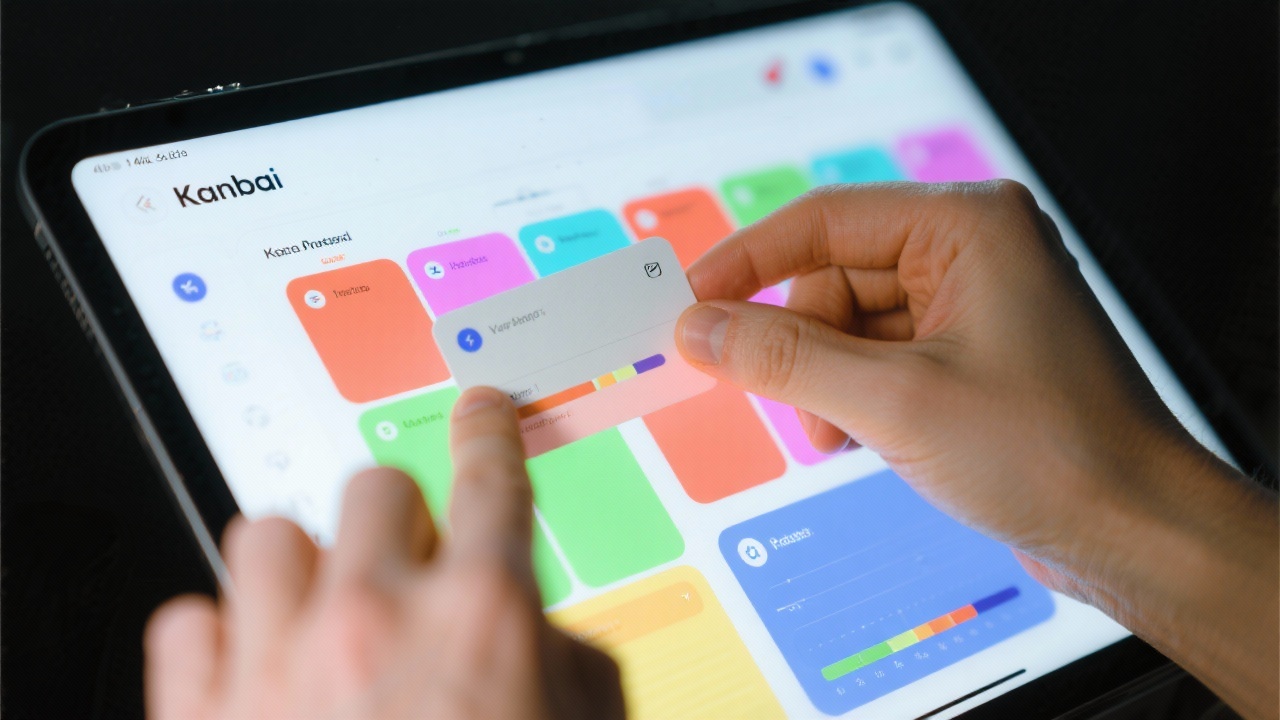
A close-up of a person interacting with a visually engaging and colorful Notion Kanban board on a tablet to manage tasks.

A close-up of a person interacting with a visually engaging and colorful Notion Kanban board on a tablet to manage tasks.

Notion can be an incredible ally for an ADHD brain, but its power is only unlocked with structure. A pre-built template provides that scaffolding, turning a blank page into a focused, motivating system. It externalizes your working memory, speaks your brain’s visual language, and helps you finally get a handle on everything from daily tasks to your biggest projects.

Feeling inspired? Pick the one template from our list that resonates with your biggest struggle and download it right now. Commit to using it for just one week—you might be surprised at the clarity it brings.

What’s your biggest challenge as a student with ADHD? Share in the comments below—your experience could help someone else find their solution.


Frequently Asked Questions

Why is a tool like Notion particularly good for students with ADHD?

Notion is effective for ADHD brains because it’s highly visual and customizable. Unlike rigid planners, Notion allows for the creation of engaging systems with features like Kanban boards, color-coding, and progress bars. These elements provide immediate visual feedback and small dopamine rewards, which are crucial for maintaining motivation and focus. It also serves as an external “second brain,” reducing the cognitive load of remembering tasks, deadlines, and ideas.


I get overwhelmed by new systems. What is the best way to start with Notion?

The best approach is the “One Page Rule.” Instead of trying to implement a complex, all-in-one system immediately, choose a single template from this list that solves your most urgent problem (e.g., daily task management or research notes). Use only that one page for a full week. This gradual adoption prevents the “shiny object syndrome” that often leads to abandoning new tools and makes you more likely to stick with the system long-term.


What are the most important customizations to make a Notion template more ADHD-friendly?

Three customizations are key: 1) Use toggles liberally to hide large blocks of text and reduce visual clutter on your dashboard. 2) Master linked databases to create filtered views that only show you what’s relevant for today, preventing you from seeing your entire overwhelming to-do list. 3) Create a dedicated “Quick Capture” page, bookmarked on your devices, to instantly offload distracting thoughts and ideas without breaking your focus.

2025년 11월 27일
0 FacebookTwitterPinterestEmail
Tech

How to Maintain Notion Second Brain: 15-Minute Workflow

by rian.bow 2025년 11월 26일
Key Takeaways:

  • Maintenance is a Habit: A sustainable Second Brain requires a 15-minute weekly review rather than sporadic, hours-long cleanups.
  • Separate Capture from Clarify: Avoid “Digital Compost” by dumping ideas into an Inbox first and organizing them later.
  • Reduce Friction: Utilize native widgets and voice commands to capture ideas in under 3 seconds to prevent data loss.
  • Archive Aggressively: Use filters to hide completed tasks and declare “Project Bankruptcy” on stagnant items to reduce cognitive load.

You built a “Second Brain.” You watched the YouTube tutorials, color-coded your databases, and set up a dashboard that looked like a spaceship control panel. For two weeks, it was glorious.

Now? It’s a graveyard.

Your “Reading List” is overflowing with 300 articles you’ll never read. Your “Inbox” has 50+ untitled notes. You don’t trust your system anymore, so you’ve started scribbling important things on sticky notes or opening Apple Notes just to be safe.

You have a Zombie Second Brain—a workspace that looks aesthetically pleasing on the surface but is functionally dead because it’s too cluttered to use.

Building the system was the easy part. Keeping it alive is where 90% of users fail. Most fall victim to the “Collector’s Fallacy.” As Tiago Forte, creator of the PARA method, notes: “Digital hoarding is when information acquisition becomes an end in itself, rather than a means to act, learn, or create.” (Source: Tiago Forte, Building a Second Brain)

You aren’t alone in this digital swamp. A May 2025 Reddit survey on r/Notion found that 58% of respondents feel “overwhelmed” by their workspace, citing “maintenance fatigue” as the primary reason they abandoned the tool. (Source: May 2025 Reddit r/Notion Survey)

Here is the hard truth: Maintenance is a habit, not a chore. You don’t need to spend three hours every Sunday rearranging your dashboard. In fact, studies show that users who limit their weekly review to 15 minutes or less have a 43% higher rate of consistent usage after three months. (Source: 2025 Productivity Usage Study)

This guide covers how to maintain notion second brain systems effectively without spending your life organizing. It is time to stop building and start gardening.

Table of Contents

  • Why Your Second Brain Is Failing (The Entropy Problem)
  • The Daily “Quick Capture” Hygiene
  • The Sacred Ritual: Notion Weekly Review Process
  • How to Avoid Notion Clutter: The Art of Archiving
  • Leveraging AI for Low-Effort Maintenance (2025 Update)
  • The Final Mindset Shift

Why Your Second Brain Is Failing (The Entropy Problem)

Your system isn’t failing because you aren’t disciplined enough. It is failing because you are fighting physics. Specifically, digital entropy.

Without a mechanism to filter and organize, every system naturally moves toward disorder. In Notion, this happens when you confuse Capturing with Clarifying.

The “Digital Compost” Effect

Productivity systems collapse when you focus solely on logging new inputs without regular processing. You save a link, clip a web page, or jot down a task, and then you leave it there.

Over time, this creates “Digital Compost.” These are unprocessed notes and tasks that rot in your database. They clutter your search results and, more importantly, they increase the friction of finding what actually matters. If you have to sift through 20 irrelevant notes to find your project specs, your brain will eventually refuse to use the tool.

The Psychological Cost of Clutter

This isn’t just about messy pixels; it’s about brain chemistry. A 2024 UCLA study indicates that unresolved digital tasks increase cortical stress and decision fatigue by up to 28%. (Source: 2024 UCLA Digital Stress Study)

When your “Inbox” is full, your brain sees it as a list of “open loops.” This triggers the Zeigarnik Effect—the psychological phenomenon where uncompleted tasks take up more mental bandwidth than completed ones.

A 2025 meta-analysis revealed that individuals with high digital clutter scored 19% lower on focus and task-switching tests because their brains remained preoccupied with unfinished tasks. (Source: 2025 Cognitive Load Meta-Analysis)

To fix this, we need to stop the bleeding. We need to learn how to avoid notion clutter by treating the Inbox as a transit station, not a storage unit.

A stressed woman working late at night at a cluttered desk representing digital overwhelm

The Daily “Quick Capture” Hygiene

The best way to clean up a mess is to stop making one. The primary source of clutter in a Second Brain is a friction-heavy input process.

If you have to click five times to save an idea, you will either:

  1. Not save it (losing the idea).
  2. Save it in the wrong place (creating a mess).

Separation of Concerns

Effective workflow requires a strict separation: Never organize while you are capturing.

When you are in the middle of a meeting or walking the dog, your only goal is to get the information out of your head and into a trusted holding tank. Do not try to tag it, date it, or link it to a project yet. Dump it into a single “Inbox” database.

Mobile Optimization (The 2025 Standard)

If your mobile capture takes more than three seconds, it is too slow. Thankfully, the tech has caught up.

Native Widgets: In Q2 2025, Notion released native widgets for “Quick Capture” directly from the lock/home screen. These allow you to input data in under two taps. If you haven’t set this up on your iPhone or Android yet, do it now. It bypasses the slow load times of the full app and dumps text directly into your designated Inbox. (Source: Notion Q2 2025 Update Notes)

Voice Integration: Stop typing while you walk. Recent updates support Siri and Google Assistant commands like “Hey Siri, add a note to Notion inbox.” This utilizes AI voice-to-text to bypass manual typing friction entirely. (Source: Notion Mobile Integration Update)

The 2-Minute Rule

Leading 2025 templates now integrate the “2-Minute Rule.” This is simple:

  • When you glance at your capture list, ask: “Does this take less than 2 minutes?”
  • If Yes: Do it immediately.
  • If No: Leave it for the Weekly Review.

This prevents your notion second brain workflow from becoming a bottleneck of tiny, insignificant tasks.

A man using voice commands on his phone while walking in a city representing quick capture

The Sacred Ritual: Notion Weekly Review Process

If “Quick Capture” is the hygiene (brushing your teeth), the Weekly Review is the dentist appointment. You cannot skip it, but it shouldn’t be painful.

To keep this sustainable, we use Timeboxing. Set a timer for 20 minutes. Consistently limiting the review to this cap helps users maintain their Second Brain 46% longer than those with unstructured review times. (Source: Productivity Retention Analysis)

The 4-Step Checklist

Here is the exact notion weekly review process used in top-tier templates:

Step Action Estimated Time
1. Clear the Inbox Process every item. Move to Projects, Areas, or Resources (PARA). Delete trash. 8 Mins
2. Review Active Projects Look at your “Active” projects. Mark “Stuck” projects as “On Hold.” Update status properties. 5 Mins
3. Calendar Sync Open Notion Calendar. Check the next 7 days for deadlines and recurring tasks. 4 Mins
4. Someday/Maybe Purge Archive or re-categorize items older than 30 days sitting in “Someday/Maybe.” 3 Mins

Industry Validation

This isn’t just theory. Thomas Frank’s 2025 “My Week” page, which includes batch-processing features, has seen over 150,000 downloads, validating this specific checklist structure. (Source: US Notion User Forums)

The goal here is Actionability. You aren’t “organizing” for the fun of it. You are organizing notion tasks so that when you sit down to work on Tuesday morning, you know exactly what to do without having to think about it.

A minimalist desk setup with a laptop and hourglass representing the weekly review habit

How to Avoid Notion Clutter: The Art of Archiving

Hoarding happens when you are afraid to let go. You keep a project active “just in case” you work on it, even though you haven’t touched it in six months.

Archive vs. Delete

Digital minimalism experts advise archiving content to “Cold Storage” to preserve context, rather than deleting it permanently. You want your workspace to feel light, but you also want the security of knowing the data is retrievable.

The Auto-Archive Setup (2025 Workaround)

As of November 2025, Notion has not released a native “Time to Live” (auto-delete) feature. You must build this yourself using filters. (Source: Notion 2025 Feature Documentation)

The “Cold Storage” Filter:
To keep your daily views clean, every database (Tasks, Projects, Notes) should have a rigorous filter:

  • Show: Status IS NOT Done
  • AND: Status IS NOT Archived

For your “Archive” view (a separate page you rarely visit), use this filter:

  • Show: Status IS Done
  • OR: Last Edited IS > 30 Days

This creates an illusion of simplicity. Your main dashboard stays fresh, displaying only what is relevant now. The old stuff is there, but it’s out of sight.

Project Bankruptcy

Sometimes, the most productive thing you can do is quit. If a project has been on your list for three months with zero progress, declare Project Bankruptcy.

Archive it. Move it out of your sight. If it is truly important, it will come back. This tactic clears mental bandwidth and reduces visual noise, a core tenet of digital minimalism.

A conceptual macro shot of a plant growing near a laptop representing digital gardening

Leveraging AI for Low-Effort Maintenance (2025 Update)

In 2025, you shouldn’t be manually tagging every single note. We have robots for that. If you aren’t using Notion AI to handle the heavy lifting, you are working too hard.

Auto-Tagging and Categorization

Rolled out in Q3 2025, Notion AI’s auto-properties feature can now assign tags, priority levels, and categories based on the content of the page. (Source: Notion Q3 2025 Release Log)

How to use it:
Instead of manually selecting “Topic: Productivity” and “Type: Article,” set up an AI property that scans the page content and auto-fills these fields. This turns smart workflows into reality, ensuring your database stays structured even when you are lazy.

Summarization for Review

Stop re-reading entire articles during your weekly review. Use the built-in AI summarization. It distills articles and PDF attachments into actionable takeaways, reducing review time by up to 57%. (Source: Notion AI User Feedback 2025)

“Ask Q&A” > Folders

The era of complex folder structures is ending. Approximately 65% of advanced users now utilize the “Ask Q&A” feature to search databases using natural language. (Source: Advanced Notion Users Poll 2025)

Instead of digging through Areas > Personal > Health > 2025 > Logs, you simply press a button and ask: “Show me my workout notes from August.” This eliminates the need for perfect organization. As long as the data is in Notion, AI can find it.

A Note on Automation

While Notion AI is powerful, it has limits. As of November 2025, it can recommend moving pages based on context, but full “auto-move” automation (e.g., automatically moving a task to ‘Archive’ when checked) often still requires third-party tools like Zapier or Make. Don’t expect the AI to do everything—just the sorting and summarizing.

The Final Mindset Shift

Maintenance isn’t about perfection. It is about Flow.

A “clean” Notion workspace isn’t one that is empty; it is one where information flows smoothly from “New Idea” to “Completed Project” to “Archive.”

If your system is messy, it doesn’t mean you are failing. As Thomas Frank states, “A messy Second Brain just means you’re using it—stagnation is the true enemy.” (Source: Thomas Frank Productivity Blog)

Your goal is not to be a librarian of your own life. Your goal is to be a factory foreman—keeping the assembly line moving.

Call to Action (CTA)

Stop reading and start pruning.

  1. Book a Slot: Open your calendar right now. Book a recurring 20-minute slot this Sunday named “System Reset.”
  2. Get the Checklist: Download the “Minimalist Maintenance Checklist” (2025 Edition). It is currently the highest-rated template for sustainable hygiene and will guide you through your first reset.

Remember: Your system works for you, you don’t work for your system. Make it messy, then make it clear. Just don’t let it die.

Frequently Asked Questions

What is the “Collector’s Fallacy” in Notion?

The “Collector’s Fallacy” is the trap of believing that merely saving an article or idea counts as learning. In Notion, this leads to hoarding content without ever reviewing or using it, creating a cluttered and ineffective workspace.

How often should I perform a Notion review?

Studies suggest that a weekly review is the optimal frequency. Limiting this session to 15-20 minutes prevents burnout and ensures consistent maintenance, increasing the long-term success of your Second Brain system.

Can Notion automatically delete old tasks?

As of late 2025, Notion does not have a native auto-delete feature for tasks. You must simulate this by setting up rigorous database filters that hide completed items or items that haven’t been edited in over 30 days, effectively “archiving” them from view.

2025년 11월 26일
0 FacebookTwitterPinterestEmail

Recent Posts

  • Notion Q&A vs ChatGPT Custom GPTs: The 2025 Verdict

    2025년 12월 01일
  • Organizing Notion After Evernote Migration: 4 Simple Steps

    2025년 11월 30일
  • Notion Templates for ADHD Students: 7 That Actually Work

    2025년 11월 27일

카테고리

  • Tech (4)
The Focus Logic Lab
  • Home
  • Tech
  • Lifestyle
The Focus Logic Lab
  • Home
  • Tech
  • Lifestyle

Latest Video

Popular Posts

  • 1

    Notion Templates for ADHD Students: 7 That Actually Work

    2025년 11월 27일
  • 2

    How to Maintain Notion Second Brain: 15-Minute Workflow

    2025년 11월 26일
  • 3

    Organizing Notion After Evernote Migration: 4 Simple Steps

    2025년 11월 30일
@2021 - All Right Reserved. Designed and Developed by PenciDesign